 anasseh.com
Getting started guide
Five minutes is all it takes: create your account, connect your sources, ask your first question. The application is available at rag.anasseh.com — demo account with 100 questions included, no commitment.
The screenshots below show the French interface — the application can also be displayed in English.
1. Create an account and sign in
You are creating a new company — or you work for yourself
- Open rag.anasseh.com and click Inscription (below the sign-in form).
- Enter the company name — if you work for yourself (shopkeeper, doctor, notary…), simply use your own name: you will be its administrator.
- Choose a username, enter your email address and a password, then submit.
- A validation email is sent to you: click the link it contains (valid for 48 hours). Until you do, signing in is refused with a "check your mailbox" message — a button lets you resend the link.
- Once validated, sign in: you land on the chat and can ask your first questions.
Check your spam folder if the validation email does not arrive within a few minutes.
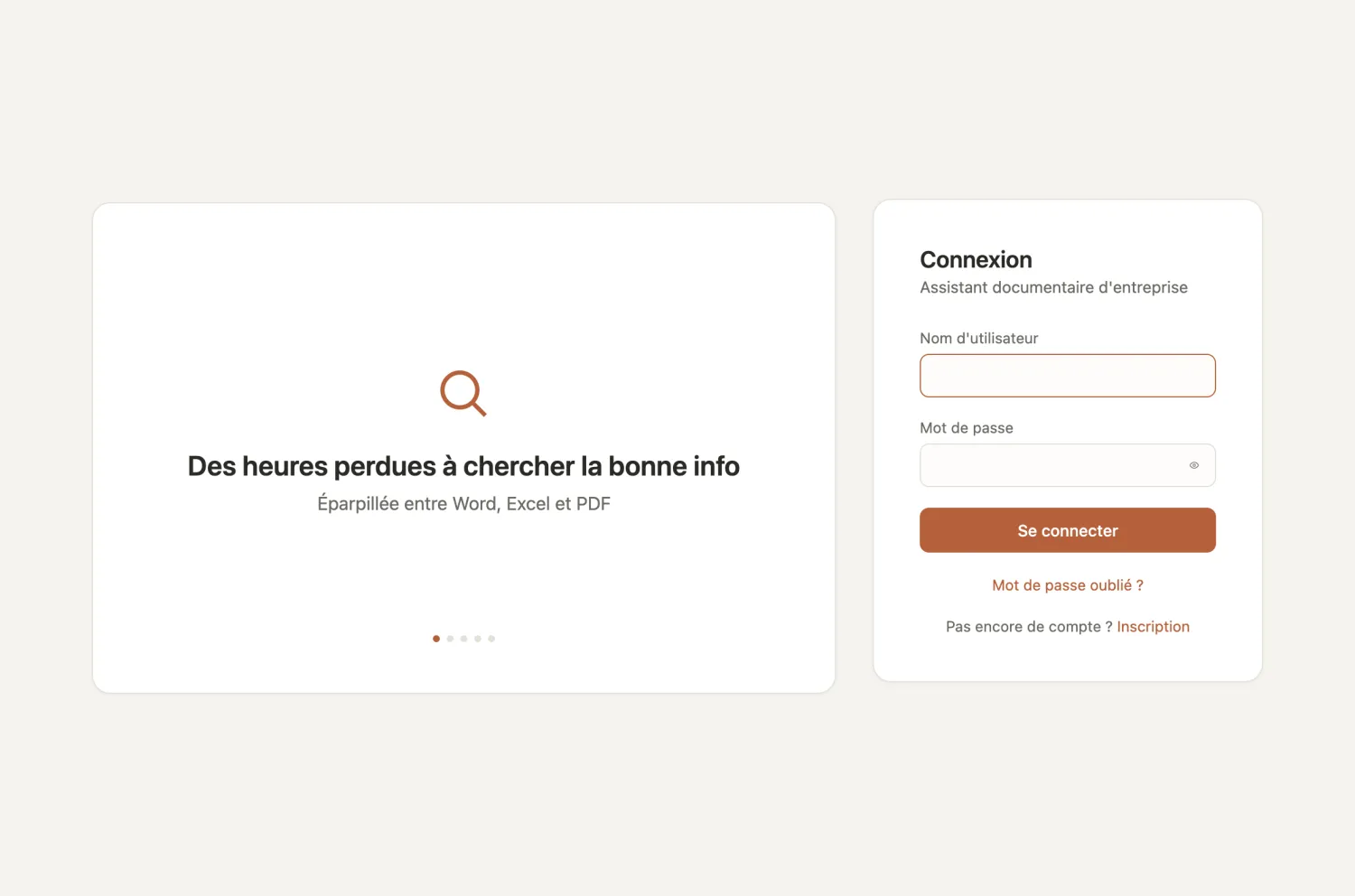
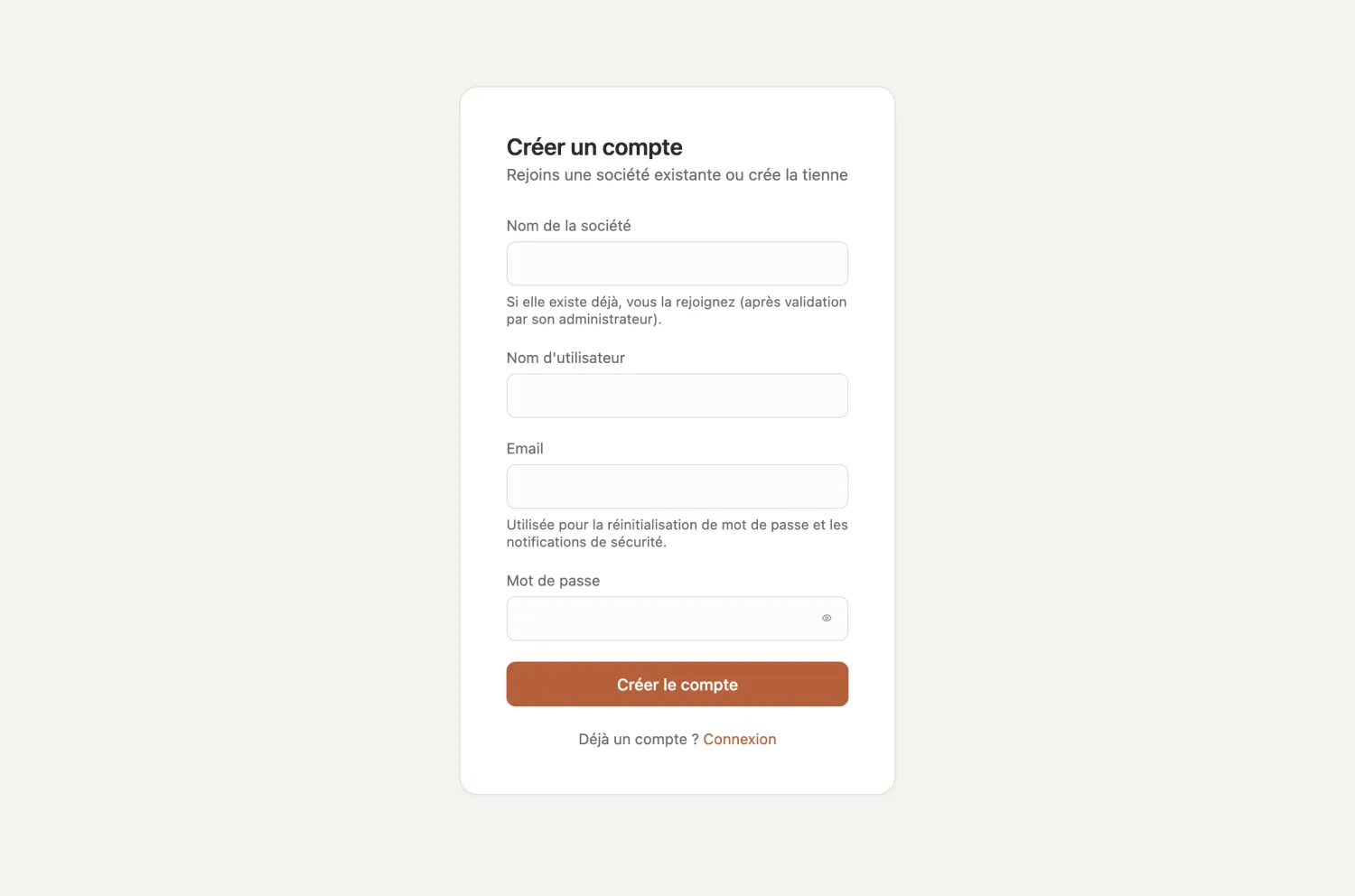
You are joining an existing company
- On the registration page, type the exact company name: the list of its teams appears — pick yours. This choice is final: the team determines which documents you will see.
- After registering, your account is pending: the company administrator receives an email to approve your arrival.
- As soon as they approve, you can sign in.
2. Connect your Gmail mailbox
- Once signed in, open the Emails menu.
- On the Gmail card, click Connect my Gmail mailbox: you are redirected to Google — pick your account and accept the requested access. It is read-only: the application can never send, modify or delete an email.
- Back on the page, the initial synchronization starts on its own: your recent emails and their attachments (PDF, Word, Excel — including scanned PDFs) are indexed. Progress is shown on the card.
- From then on, the mailbox synchronizes automatically at regular intervals. The Synchronize now button forces an immediate update.
You can then ask questions such as "summarize this week's emails" or "find the invoice received in February", and request calculations on Excel files received as attachments.
Privacy: your emails are visible to you alone — no other user, not even an administrator, can access them. Disconnect removes everything indexed from your mailbox; Resync from scratch wipes and rebuilds the index without asking for your Google consent again.
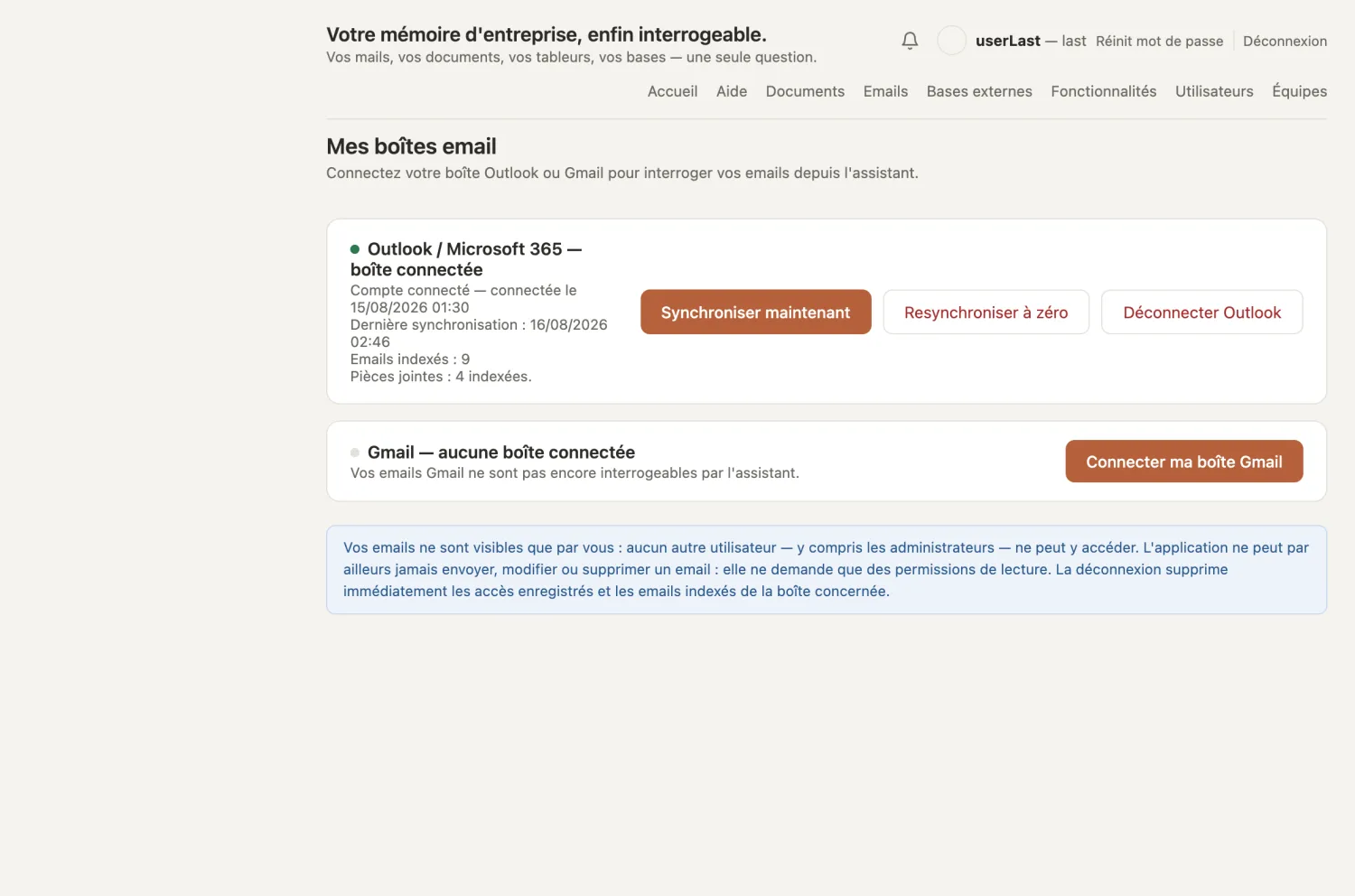
3. Connect your Outlook mailbox (Microsoft 365)
Unlike Gmail, Outlook requires a one-time setup per company: the administrator (or their IT person) registers the application in the company's Microsoft workspace.
- Administrator: open the Fonctionnalités menu, "Outlook connection (Microsoft 365)" card. The card lists the exact operations to perform in portal.azure.com (app registration, delegated Mail.Read permission, client secret, redirect address to copy from the card). Then enter the application ID, tenant ID and secret, and Save.
- Each user: Emails menu → Connect my Outlook mailbox → Microsoft sign-in and consent (read-only, like Gmail).
- The initial synchronization starts automatically, then the mailbox stays up to date just like Gmail — same buttons, same privacy rules.
Until the company configuration is saved, the Outlook card shows an explanatory note instead of the connect button.
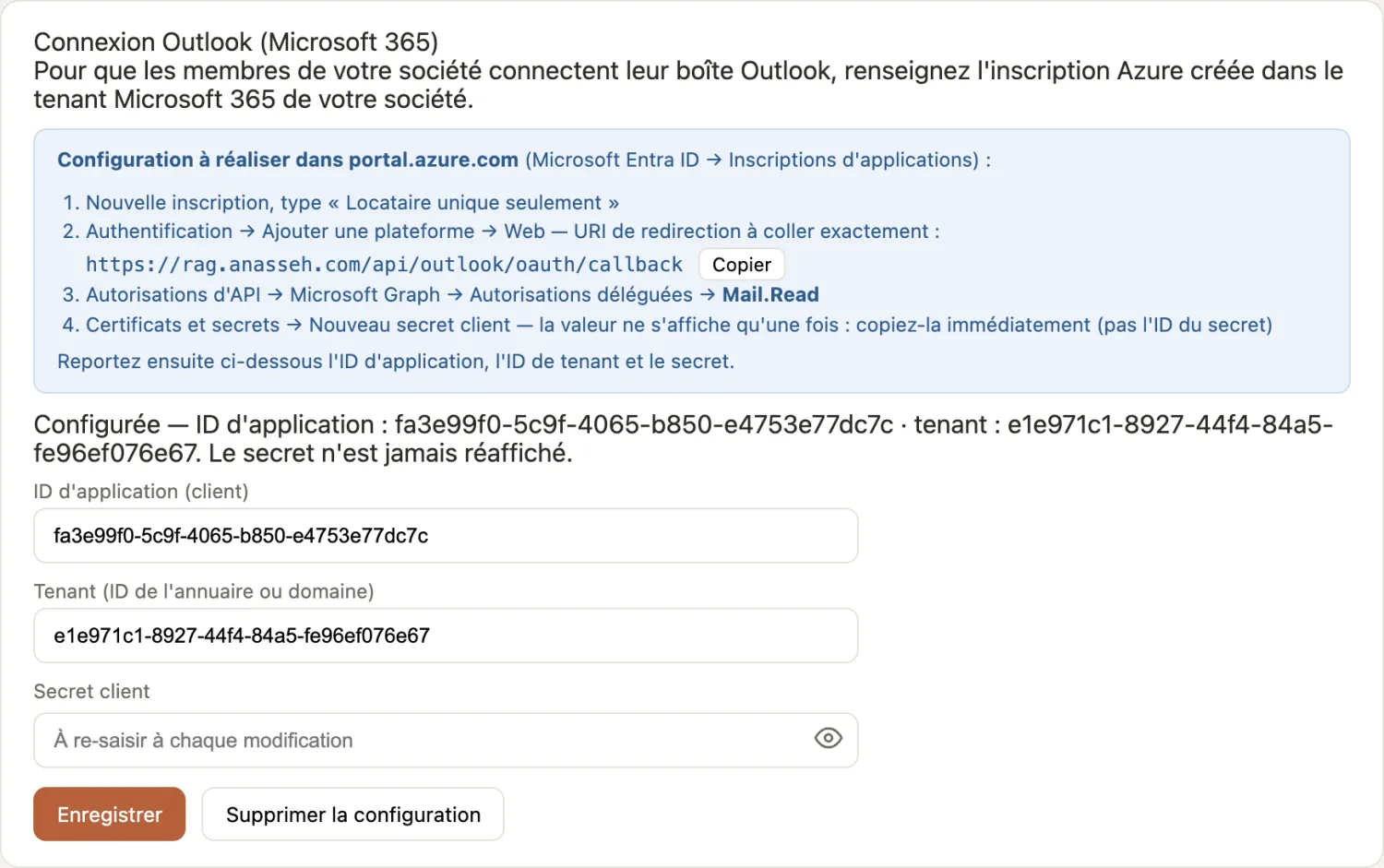
4. Upload documents
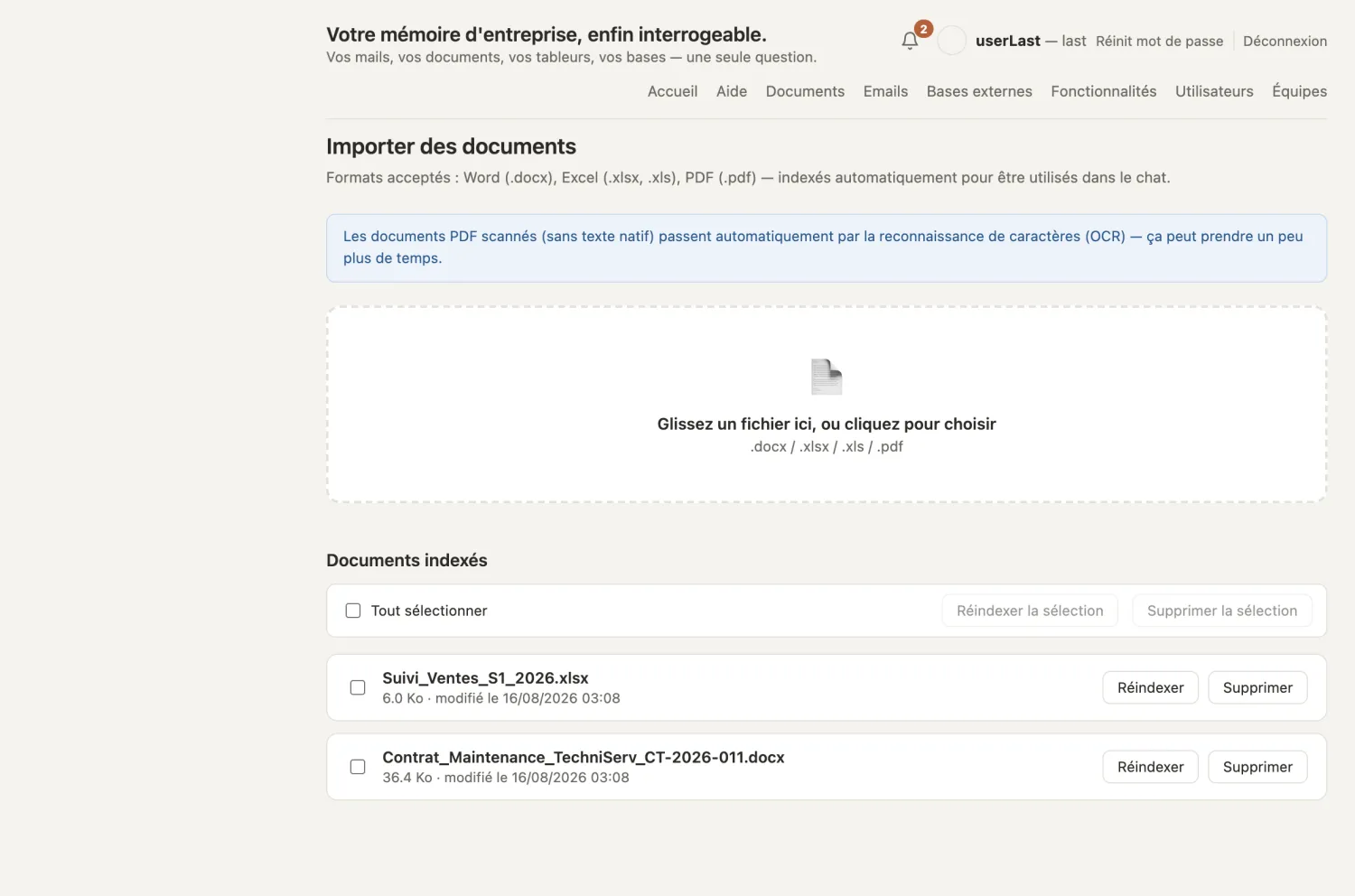
Documents uploaded here belong to the company: contracts, invoices, procedures, tracking spreadsheets… They become searchable through the chat.
- Open the Documents menu.
- Drag your files into the drop zone — Word, Excel or PDF, including scanned PDFs (they go through automatic text recognition).
- Indexing runs in the background: you can leave the page, and a notification (bell at the top of the screen) tells you when it is done. Documents with images or scans take longer.
- The list of indexed documents is shown on the same page, each with Reindex and Delete buttons.
Who sees what: a document uploaded by the administrator is visible to the whole company; a document uploaded by a team member is visible only to their team (and to Management). Your emails and attachments remain strictly personal.
5. Attach a document to a conversation
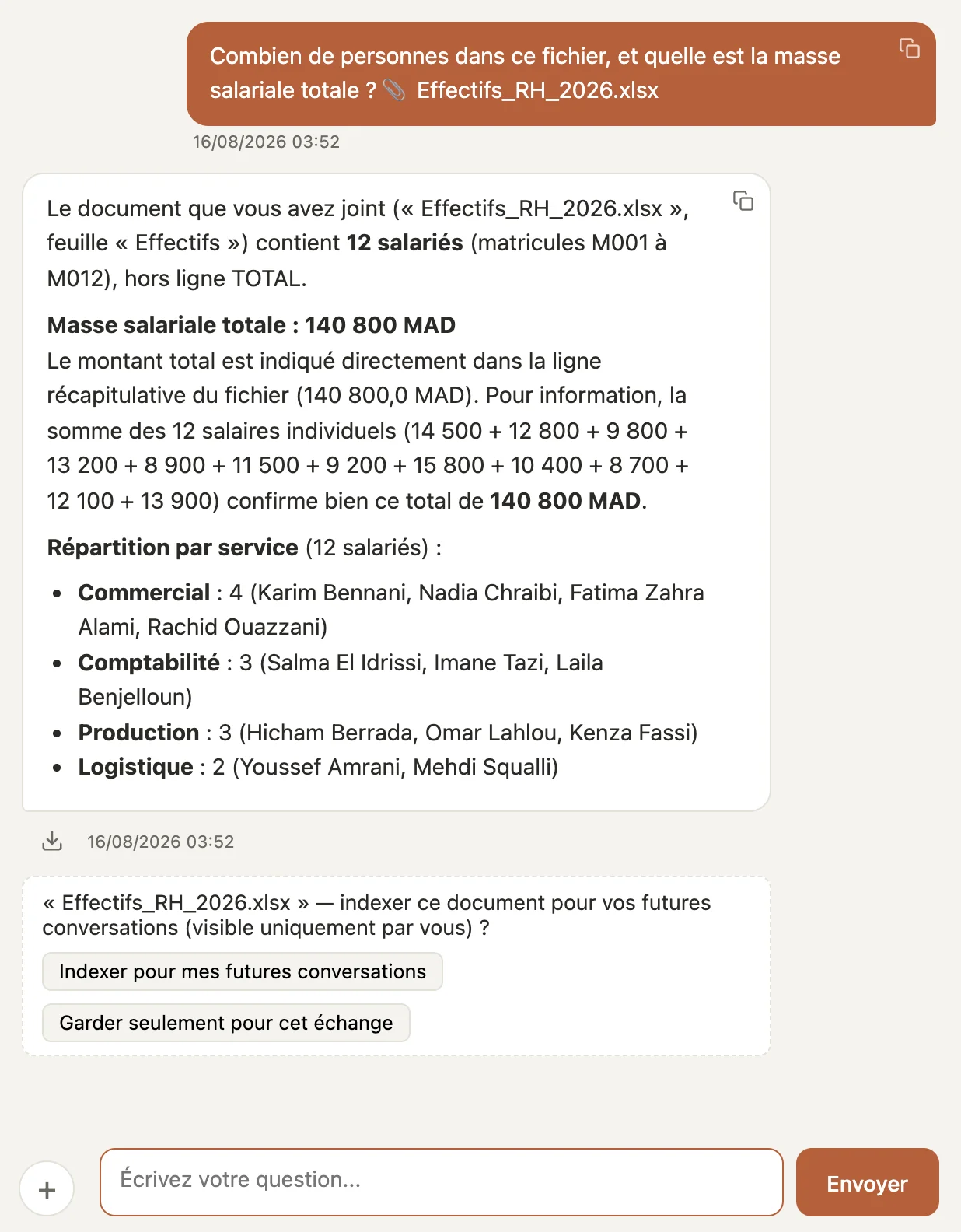
To ask questions about a document without adding it to the company's documents — a draft, a file you just received:
- In the chat, click the + button to the left of the input field and choose your file (PDF, Word, Excel, image).
- The file appears above the input field; type your question and send.
- After the answer, the application asks whether to index this document for your future conversations (visible to you alone) — Yes: you will be able to query it from any conversation; No (or no reply): it stays usable in this conversation only.
Either way, a document attached in a conversation is never visible to other users — it is your private space, like your emails.
And then, day to day?
Once your sources are connected, everything happens in the conversation: ask for a chart of your expenses, export an answer to Word, Excel or PDF in your company's colors, have a summary generated from your exchanges, adapt an existing Word document for a new client, quote a passage from an earlier answer to dig into a figure… Every answer cites its source, and when the assistant does not know, it says so.
Your figures live in a database (ERP, CRM…)? Your administrator connects it read-only and selects only the useful tables — out of a 100-table database, only the chosen ones become queryable. You then question them in plain language, without writing a line of SQL, directly on your production data.
The full day-to-day user manual (exports, document generation, teams, administration…) is provided with your account — and the application's built-in help details every feature, tailored to your role.
Ready to try it on your own documents?
100 questions included, no commitment — or contact us for a guided demo.